- Demos
- Transfers With Frontend UI
Preconditions:
- XDEFI wallet browser extension is installed.
- DOGE tokens are available for transfer.
Steps:
- Access the Transfer UI Navigate to Int3face Transfer UI. Note that the UI currently supports inbound transfers only.
-
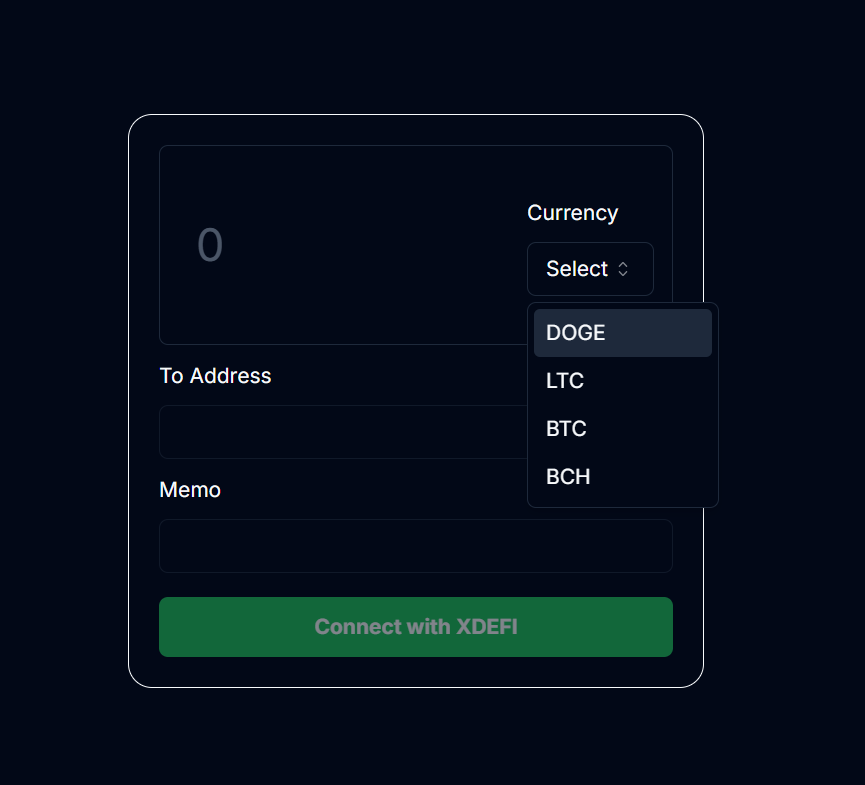
Select Currency Choose the currency you want to transfer.
-
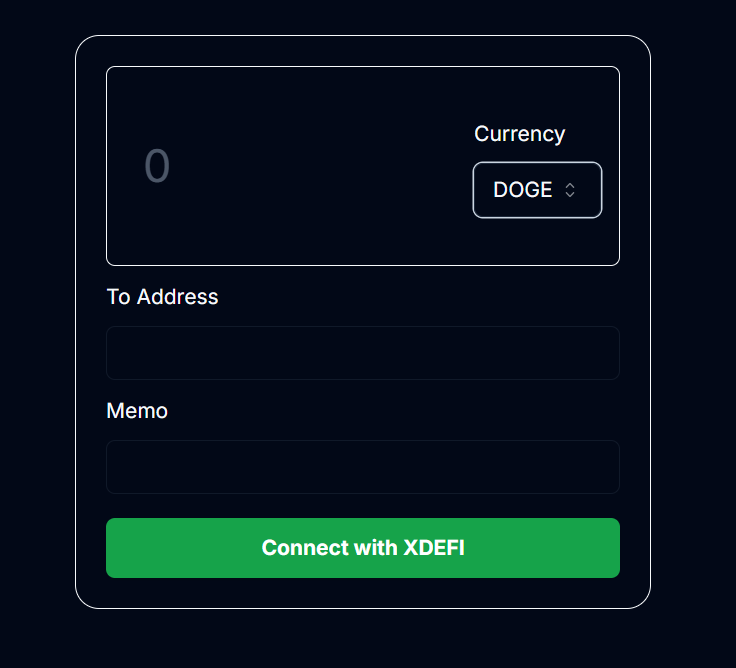
Connect with XDEFI Click the “Connect with XDEFI” button.
-
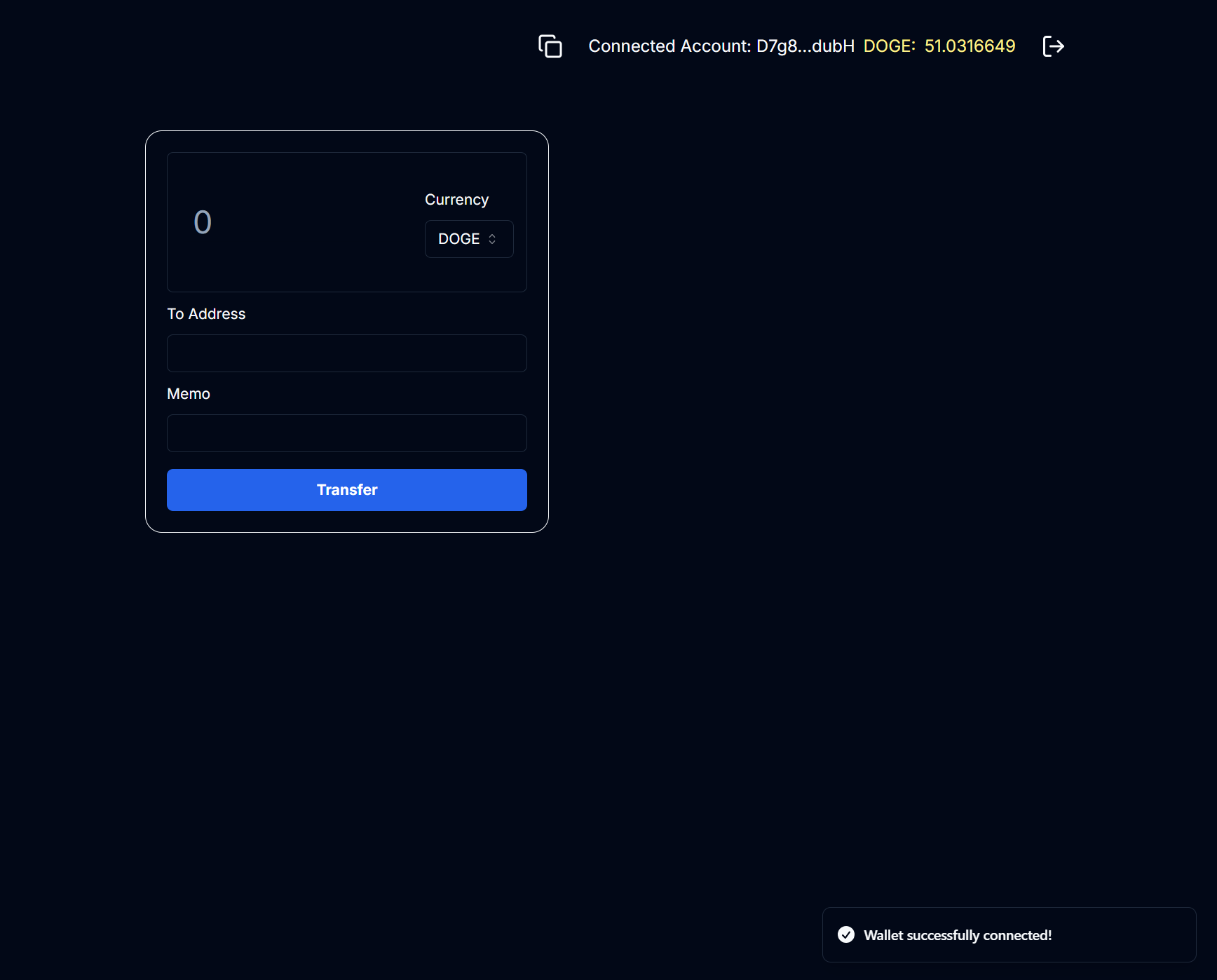
XDEFI Wallet Connected Your XDEFI wallet is now connected.
-
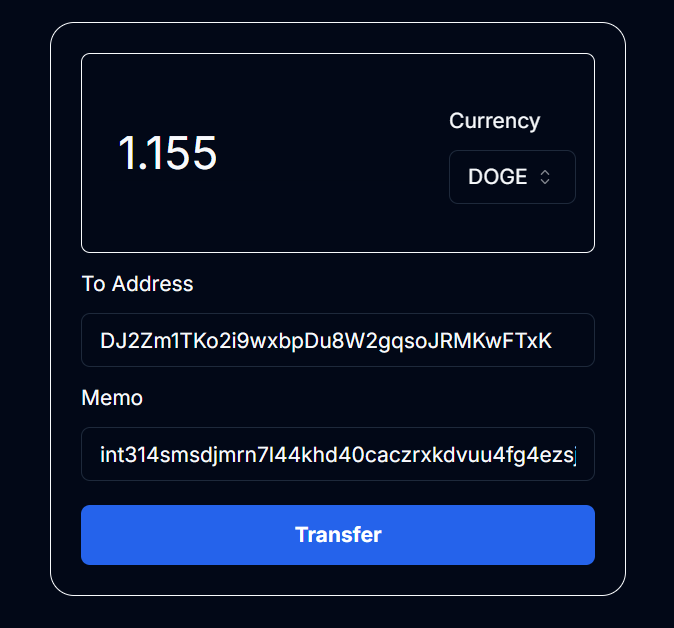
Input Transfer Details Now you can send DOGE tokens from your address. The following fields should be filled:
- Amount: The amount of DOGE tokens to send (can be a floating number).
- To Address: Int3face Vault address to send DOGE tokens to (ask the actual vault address from the Int3face team).
- Memo: The target int3face address to mint the tokens if successful.
-
Submit the Transfer Fill out the fields and click the ‘Transfer’ button.
-
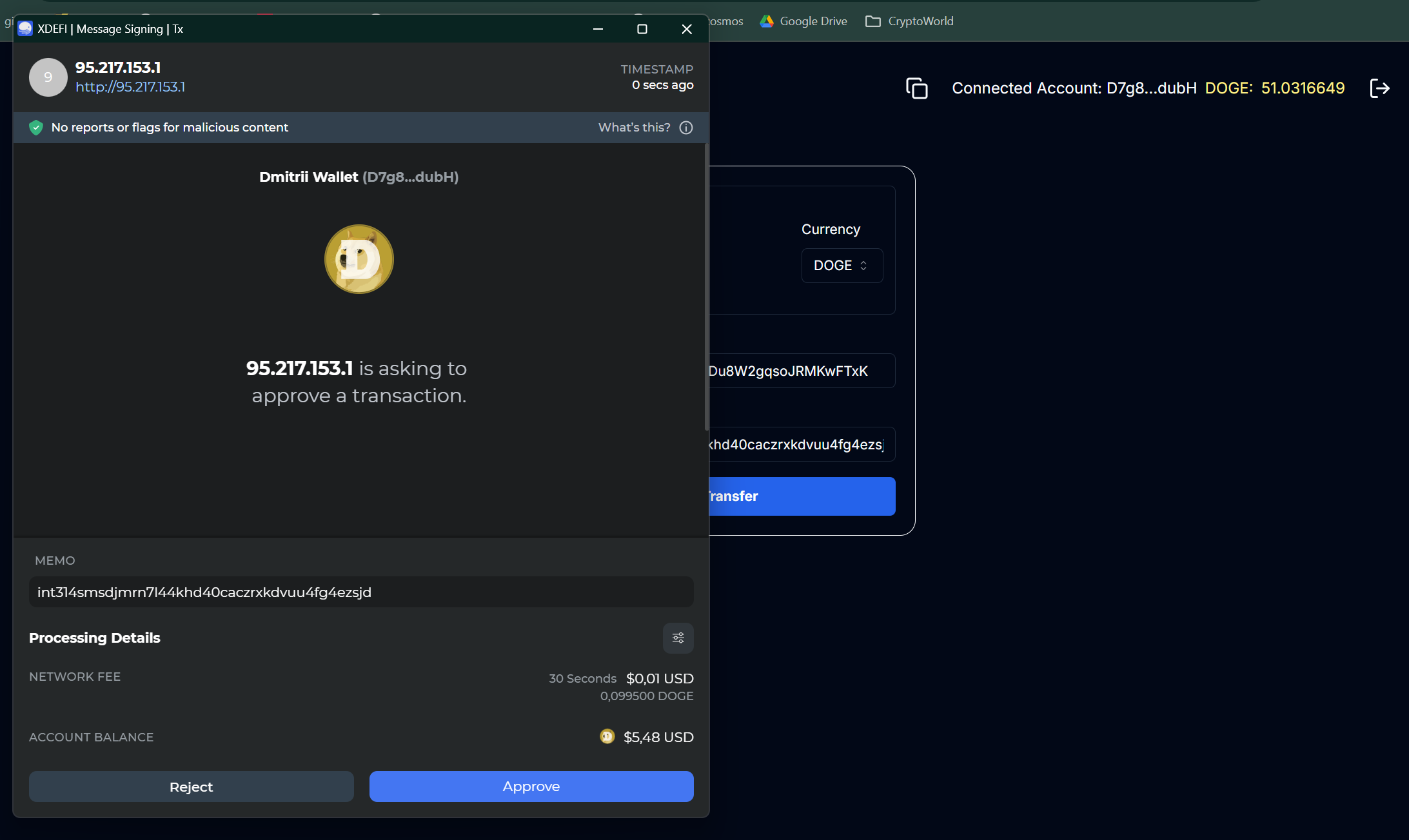
Approve the Transfer XDEFI wallet will show a confirmation window. Click ‘Approve’.
-
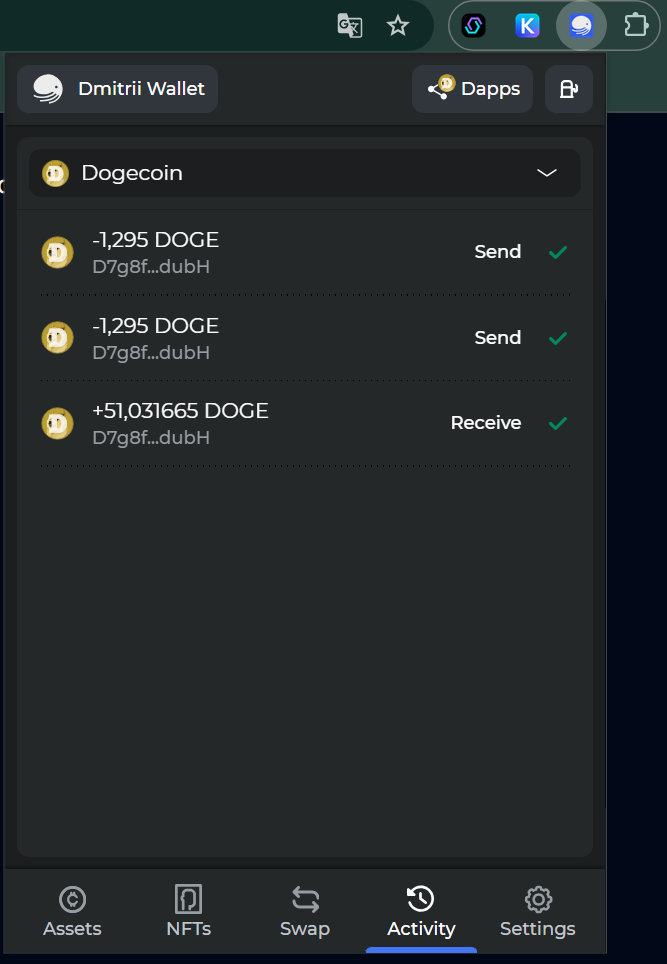
Check Transaction Status Open the ‘Activity’ tab in XDEFI wallet to monitor the transaction. Ensure the correct chain is selected.
-
Verify on Explorer Visit the Int3face Ping.Pub Explorer to verify your transaction. You can check your int3face address and see the transaction history here.

Outbound transfer using CLI
Preconditions:
- First option: Int3face node is installed and running on the int3face-1 mainnet.
- Second option: You also can use int3faced binary just as a CLI client and connect to the int3face-1 full-node - http://162.55.33.158:26657. (In this case you don`t need to install the full node on your machine, but must install the int3faced binary).
Steps:
- Option 1: If you have an Int3face node installed, you can perform an outbound transfer immediately.
-
Option 2: If you want to use only CLI as a client, you need to import a key to the Int3face node.
Import an existing key using mnemonic:
Check the key list:Check address balances:
-
Perform Outbound Transfer
Use the following command to transfer (add —node http://162.55.33.158:26657 flag if you use Option 2)
Command template:
Example of transfer 1 DOGE (note that amount is in satoshis (* 10^8) for DOGE and other UTXO denoms):Tx execution result:
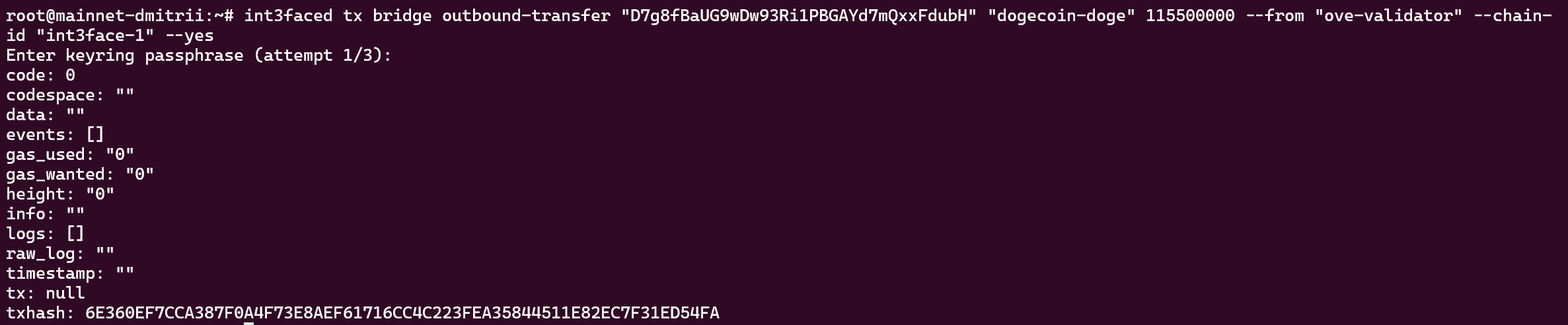
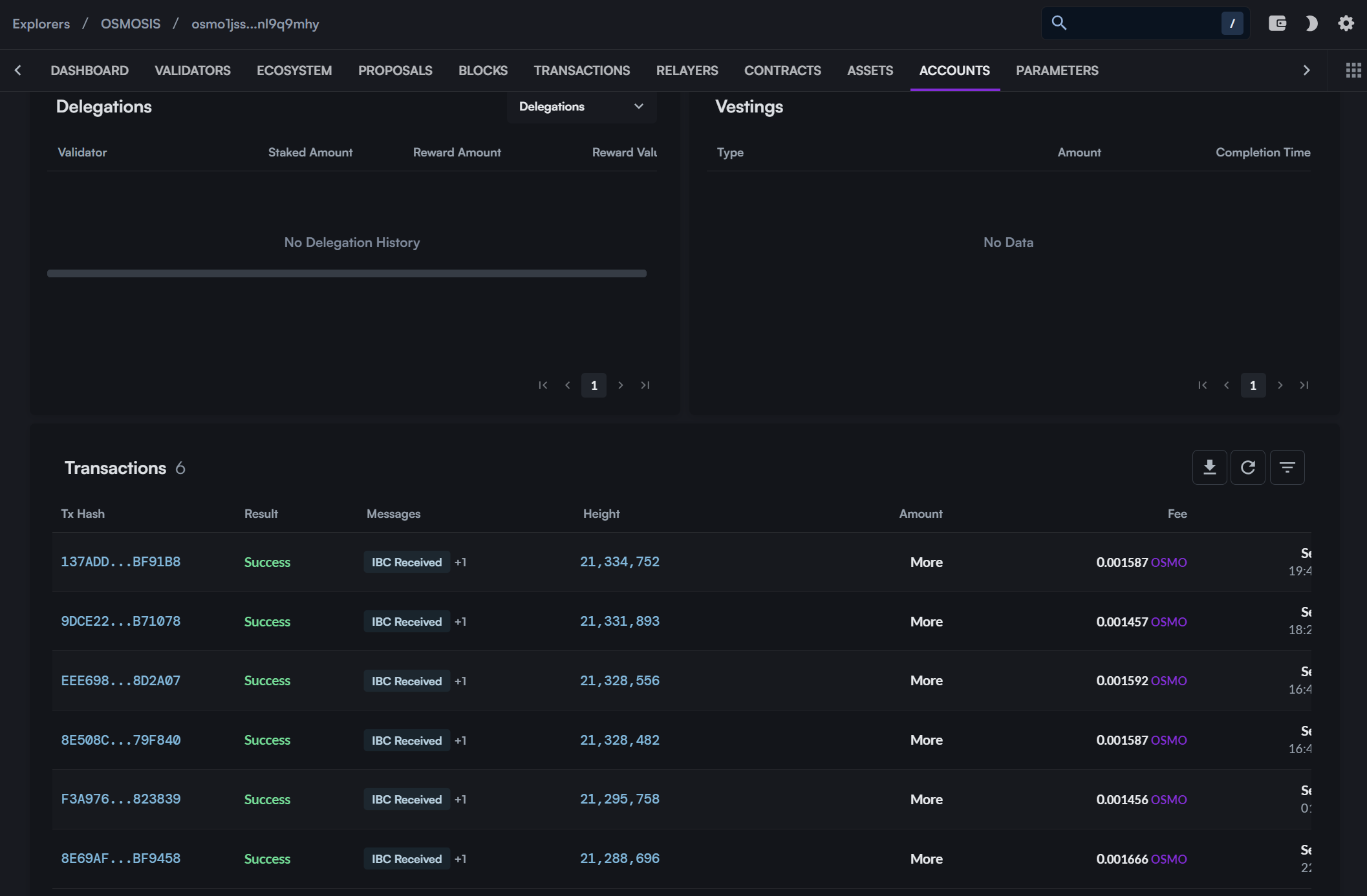
- Check the Transaction Status After tx is executed, copy tx hash, you can check the transaction status in the Int3face Pig.Pub explorer. Link example -> http://95.217.153.1/explorer/int3face-1/tx/6E360EF7CCA387F0A4F73E8AEF61716CC4C223FEA35844511E82EC7F31ED54FA.
- Verify on DOGE Explorer Also, check the balance of the recipient address in the DOGE explorer. You can find your DOGE address and see transactions list. Link example -> https://dogechain.info/address/D7g8fBaUG9wDw93Ri1PBGAYd7mQxxFdubH.
IBC Transfer using CLI
Preconditions:
- First option: Int3face node is installed and running on the int3face-1 mainnet.
- Second option: You also can use int3faced binary just as a CLI client and connect to the int3face-1 full-node - http://162.55.33.158:26657. (In this case you don`t need to install the full node on your machine, but must install the int3faced binary).
Steps:
- Option 1: If you have an Int3face node installed, you can perform an outbound transfer immediately.
-
Option 2: If you want to use only CLI as a client, you need to import a key to the Int3face node.
Import an existing key using mnemonic:
Check the key list:Check address balances:
-
Perform IBC Transfer
Use the following command (add —node http://162.55.33.158:26657 flag if you use a second option):
Command template:
Example of transfer 1 IBC token (note that amount is in satoshis (* 10^8) for DOGE and other UTXO denoms):
-
Verify on Mintscan Explorer
After tx is executed, you can monitor tokens received in the recipient address using Mintscan.
Link example -> https://www.mintscan.io/osmosis/address/osmo1jssqq9mas2dg5p5x847fz0n58uqqz2nl9q9mhy.
Navigate to the ‘Transactions’ tab to see the transaction details.