> ## Documentation Index
> Fetch the complete documentation index at: https://docs.int3face.zone/llms.txt
> Use this file to discover all available pages before exploring further.
# Transfers With Frontend UI
* Demos
* Transfers With Frontend UI
On this page
## Preconditions:[](#preconditions "Direct link to Preconditions:")
* XDEFI wallet browser extension is installed.
* DOGE tokens are available for transfer.
## Steps:[](#steps "Direct link to Steps:")
1. **Access the Transfer UI** Navigate to [Int3face Transfer UI](http://95.217.153.1/ui/). Note that the UI currently supports inbound transfers only.
2. **Select Currency** Choose the currency you want to transfer.
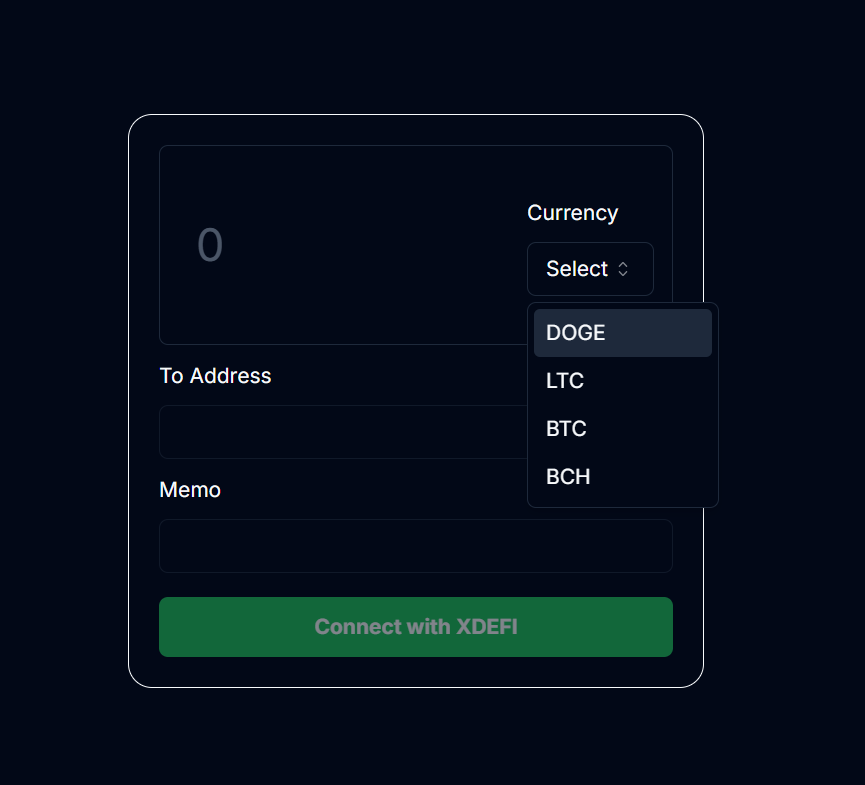 3. **Connect with XDEFI** Click the "Connect with XDEFI" button.
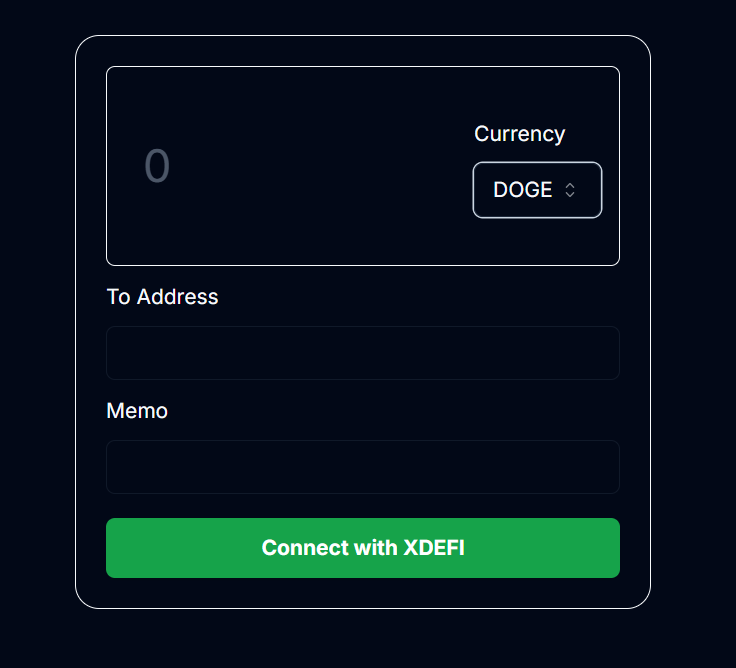 4. **XDEFI Wallet Connected** Your XDEFI wallet is now connected.
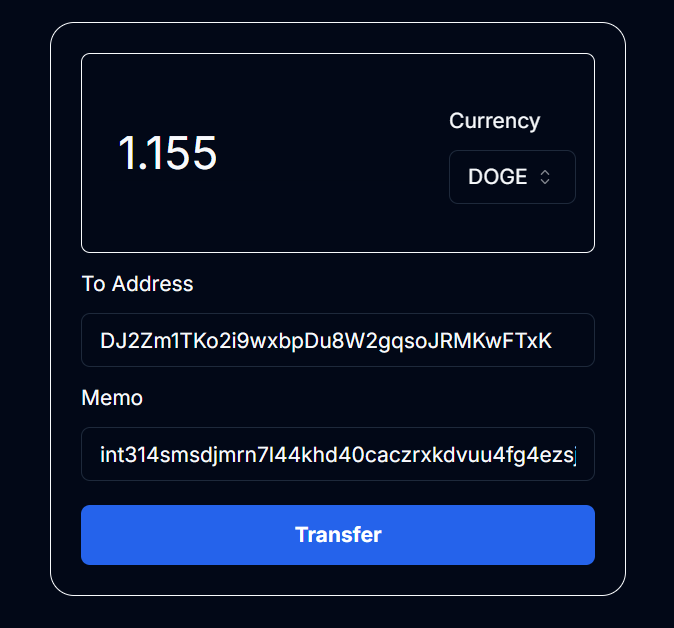
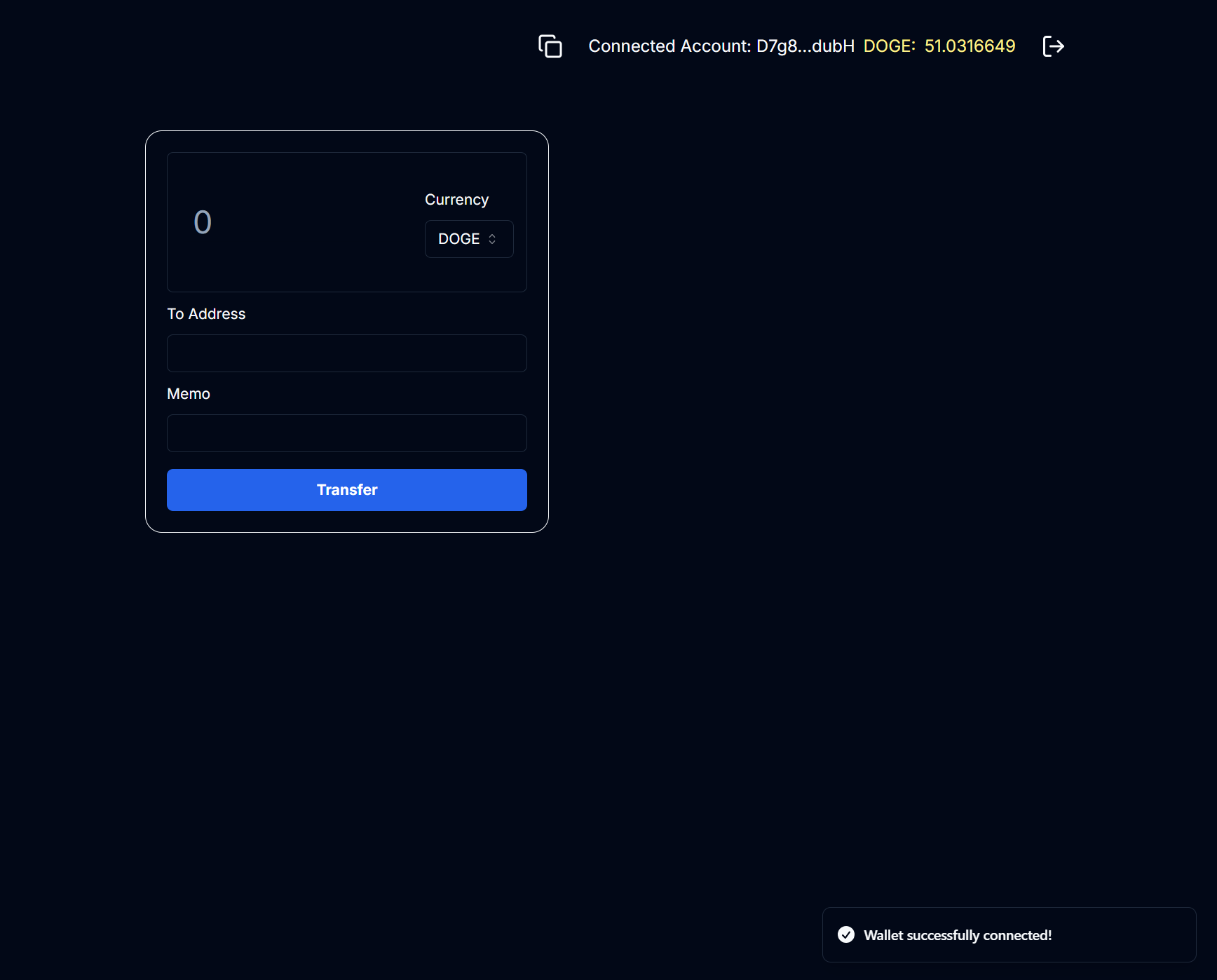 5. **Input Transfer Details** Now you can send DOGE tokens from your address. The following fields should be filled:
* **Amount**: The amount of DOGE tokens to send (can be a floating number).
* **To Address**: Int3face Vault address to send DOGE tokens to (ask the actual vault address from the Int3face team).
* **Memo**: The target int3face address to mint the tokens if successful.
6. **Submit the Transfer** Fill out the fields and click the 'Transfer' button.
5. **Input Transfer Details** Now you can send DOGE tokens from your address. The following fields should be filled:
* **Amount**: The amount of DOGE tokens to send (can be a floating number).
* **To Address**: Int3face Vault address to send DOGE tokens to (ask the actual vault address from the Int3face team).
* **Memo**: The target int3face address to mint the tokens if successful.
6. **Submit the Transfer** Fill out the fields and click the 'Transfer' button.
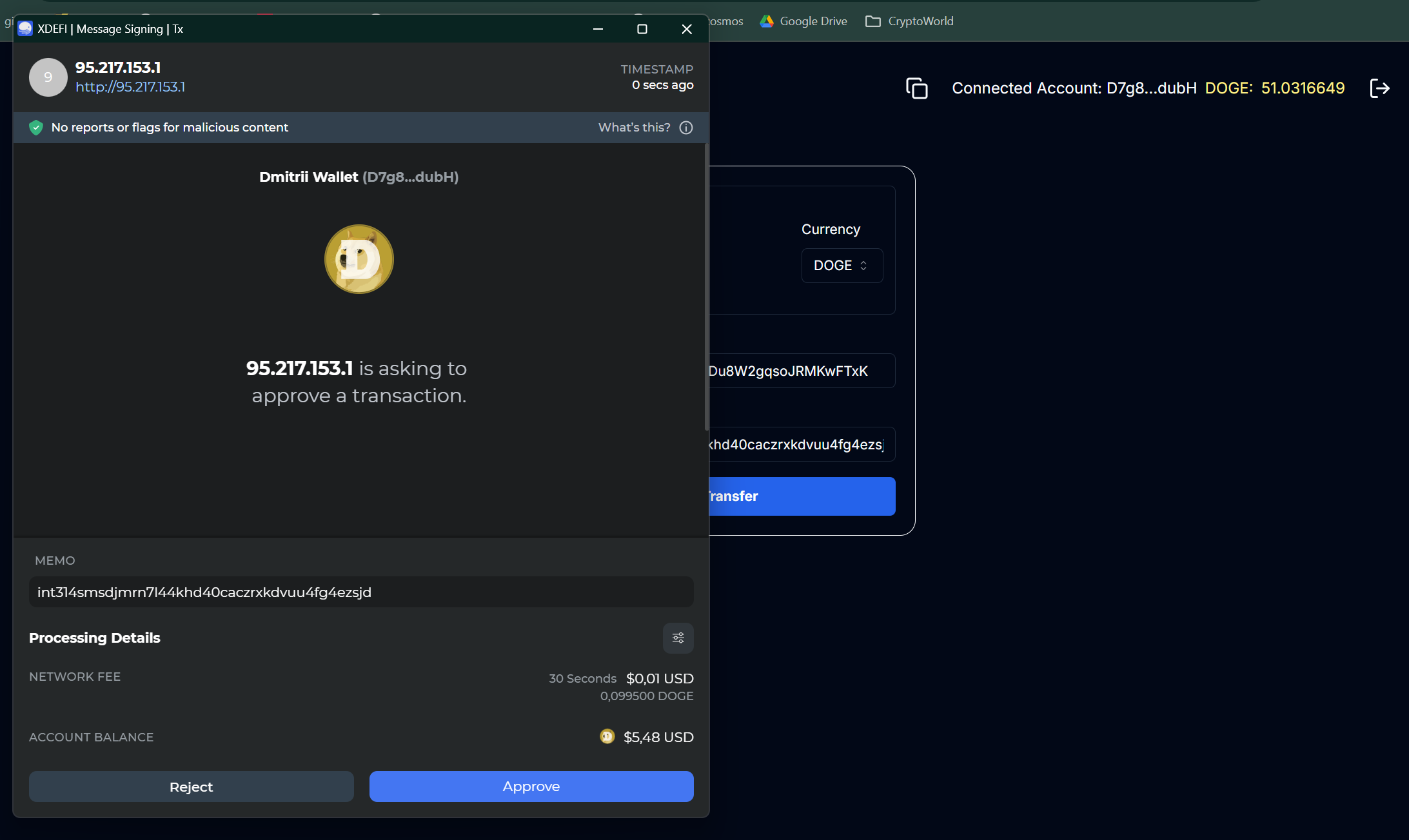
 7. **Approve the Transfer** XDEFI wallet will show a confirmation window. Click 'Approve'.
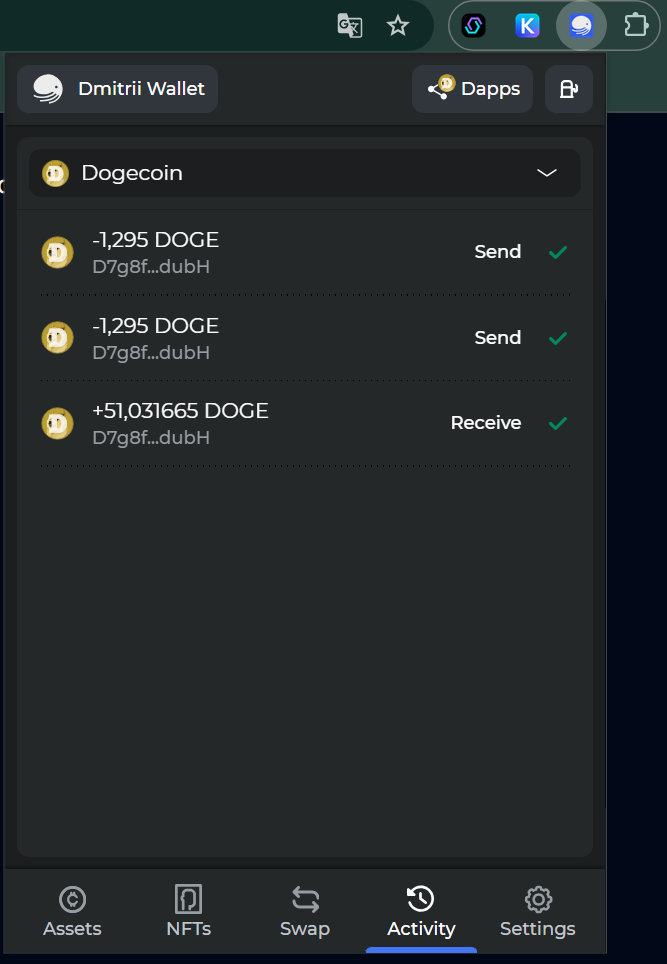
 8. **Check Transaction Status** Open the 'Activity' tab in XDEFI wallet to monitor the transaction. Ensure the correct chain is selected.
 9. **Verify on Explorer** Visit the Int3face Ping.Pub Explorer to verify your transaction. You can check your int3face address and see the transaction history [here](http://95.217.153.1/explorer/int3face-1/account/%7Byour_int3face_address%7D).
 ***
# Outbound transfer using CLI
## Preconditions:[](#preconditions-1 "Direct link to Preconditions:")
* First option: Int3face node is installed and running on the int3face-1 mainnet.
* Second option: You also can use int3faced binary just as a CLI client and connect to the int3face-1 full-node - [http://162.55.33.158:26657](http://162.55.33.158:26657). (In this case you don\`t need to install the full node on your machine, but must install the int3faced binary).
## Steps:[](#steps-1 "Direct link to Steps:")
1. **Option 1**: If you have an Int3face node installed, you can perform an outbound transfer immediately.
2. **Option 2**: If you want to use only CLI as a client, you need to import a key to the Int3face node.
Import an existing key using mnemonic:
```
int3faced keys add key_name --recover
```
Check the key list:
```
int3faced keys list
```
Check address balances:
```
int3faced q bank balances {your_int3face_address} --node http://162.55.33.158:26657
```
3. **Perform Outbound Transfer**
Use the following command to transfer (add --node [http://162.55.33.158:26657](http://162.55.33.158:26657) flag if you use Option 2)
Command template:
```
int3faced tx bridge outbound-transfer {recipient_address} {asset} {amount} --from {key_name} --chain-id int3face-1
```
Example of transfer 1 DOGE (note that amount is in satoshis (\* 10^8) for DOGE and other UTXO denoms):
```
int3faced tx bridge outbound-transfer D7g8fBaUG9wDw93Ri1PBGAYd7mQxxFdubH dogecoin-doge 100000000 --from ove-validator --chain-id int3face-1
```
Tx execution result:
***
# Outbound transfer using CLI
## Preconditions:[](#preconditions-1 "Direct link to Preconditions:")
* First option: Int3face node is installed and running on the int3face-1 mainnet.
* Second option: You also can use int3faced binary just as a CLI client and connect to the int3face-1 full-node - [http://162.55.33.158:26657](http://162.55.33.158:26657). (In this case you don\`t need to install the full node on your machine, but must install the int3faced binary).
## Steps:[](#steps-1 "Direct link to Steps:")
1. **Option 1**: If you have an Int3face node installed, you can perform an outbound transfer immediately.
2. **Option 2**: If you want to use only CLI as a client, you need to import a key to the Int3face node.
Import an existing key using mnemonic:
```
int3faced keys add key_name --recover
```
Check the key list:
```
int3faced keys list
```
Check address balances:
```
int3faced q bank balances {your_int3face_address} --node http://162.55.33.158:26657
```
3. **Perform Outbound Transfer**
Use the following command to transfer (add --node [http://162.55.33.158:26657](http://162.55.33.158:26657) flag if you use Option 2)
Command template:
```
int3faced tx bridge outbound-transfer {recipient_address} {asset} {amount} --from {key_name} --chain-id int3face-1
```
Example of transfer 1 DOGE (note that amount is in satoshis (\* 10^8) for DOGE and other UTXO denoms):
```
int3faced tx bridge outbound-transfer D7g8fBaUG9wDw93Ri1PBGAYd7mQxxFdubH dogecoin-doge 100000000 --from ove-validator --chain-id int3face-1
```
Tx execution result:
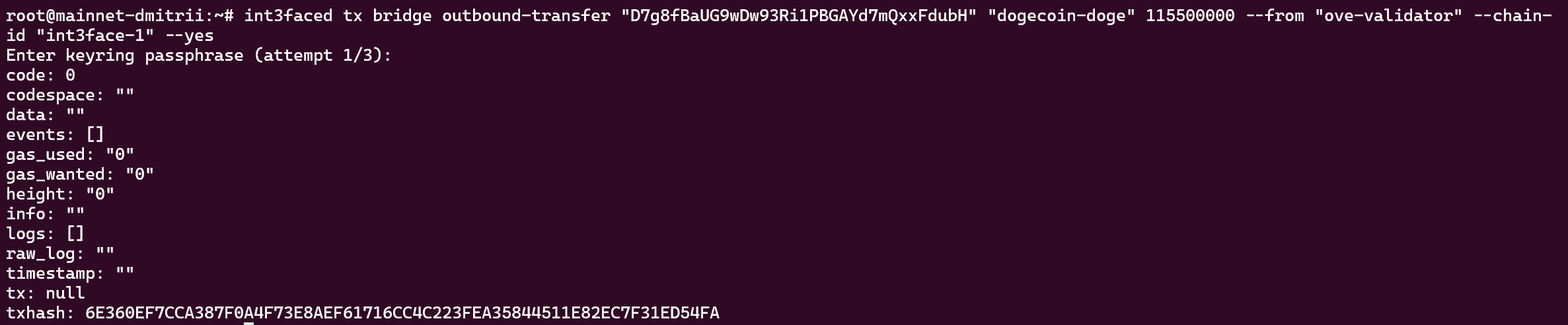 4. **Check the Transaction Status**
After tx is executed, copy tx hash, you can check the transaction status in the Int3face Pig.Pub explorer.
Link example -> [http://95.217.153.1/explorer/int3face-1/tx/6E360EF7CCA387F0A4F73E8AEF61716CC4C223FEA35844511E82EC7F31ED54FA](http://95.217.153.1/explorer/int3face-1/tx/6E360EF7CCA387F0A4F73E8AEF61716CC4C223FEA35844511E82EC7F31ED54FA).
5. **Verify on DOGE Explorer**
Also, check the balance of the recipient address in the DOGE explorer. You can find your DOGE address and see transactions list.
Link example -> [https://dogechain.info/address/D7g8fBaUG9wDw93Ri1PBGAYd7mQxxFdubH](https://dogechain.info/address/D7g8fBaUG9wDw93Ri1PBGAYd7mQxxFdubH).
# IBC Transfer using CLI
## Preconditions:[](#preconditions-2 "Direct link to Preconditions:")
* First option: Int3face node is installed and running on the int3face-1 mainnet.
* Second option: You also can use int3faced binary just as a CLI client and connect to the int3face-1 full-node - [http://162.55.33.158:26657](http://162.55.33.158:26657). (In this case you don\`t need to install the full node on your machine, but must install the int3faced binary).
## Steps:[](#steps-2 "Direct link to Steps:")
1. **Option 1**: If you have an Int3face node installed, you can perform an outbound transfer immediately.
2. **Option 2**: If you want to use only CLI as a client, you need to import a key to the Int3face node.
Import an existing key using mnemonic:
```
int3faced keys add key_name --recover
```
Check the key list:
```
int3faced keys list
```
Check address balances:
```
int3faced q bank balances {your_int3face_address} --node http://162.55.33.158:26657
```
3. **Perform IBC Transfer**
Use the following command (add --node [http://162.55.33.158:26657](http://162.55.33.158:26657) flag if you use a second option):
Command template:
```
int3faced tx ibc-transfer transfer {source-port} {source-channel} {receiver_address} {amount}{denom} --from {key_name} --chain-id int3face-1 --fees 10000uint3 --gas auto --packet-timeout-height 0-10000 --packet-timeout-timestamp 600000000000
```
Example of transfer 1 IBC token (note that amount is in satoshis (\* 10^8) for DOGE and other UTXO denoms):
```shell theme={null}
int3faced tx ibc-transfer transfer \
transfer \
channel-0 \
osmo1jssqq9mas2dg5p5x847fz0n58uqqz2nl9q9mhy \
10000factory/int31zlefkpe3g0vvm9a4h0jf9000lmqutlh99h7fsd/dogecoin-doge \
--from ove-validator \
--chain-id int3face-1 \
--fees 10000uint3 \
--gas auto \
--packet-timeout-height 0-10000 \
--packet-timeout-timestamp 600000000000
```
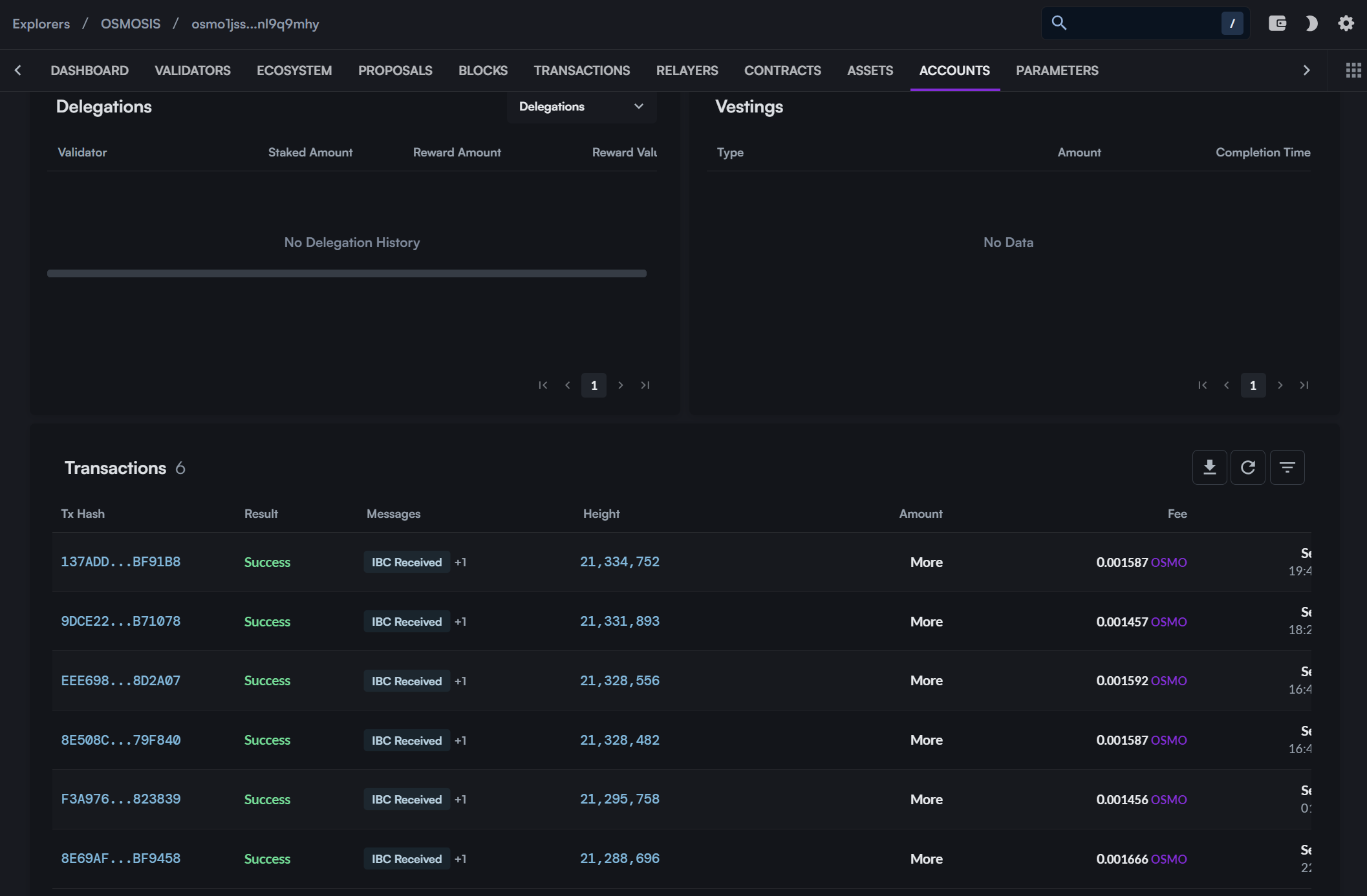
4. **Verify on Mintscan Explorer**
After tx is executed, you can monitor tokens received in the recipient address using Mintscan.
Link example -> [https://www.mintscan.io/osmosis/address/osmo1jssqq9mas2dg5p5x847fz0n58uqqz2nl9q9mhy](https://www.mintscan.io/osmosis/address/osmo1jssqq9mas2dg5p5x847fz0n58uqqz2nl9q9mhy).
Navigate to the 'Transactions' tab to see the transaction details.
4. **Check the Transaction Status**
After tx is executed, copy tx hash, you can check the transaction status in the Int3face Pig.Pub explorer.
Link example -> [http://95.217.153.1/explorer/int3face-1/tx/6E360EF7CCA387F0A4F73E8AEF61716CC4C223FEA35844511E82EC7F31ED54FA](http://95.217.153.1/explorer/int3face-1/tx/6E360EF7CCA387F0A4F73E8AEF61716CC4C223FEA35844511E82EC7F31ED54FA).
5. **Verify on DOGE Explorer**
Also, check the balance of the recipient address in the DOGE explorer. You can find your DOGE address and see transactions list.
Link example -> [https://dogechain.info/address/D7g8fBaUG9wDw93Ri1PBGAYd7mQxxFdubH](https://dogechain.info/address/D7g8fBaUG9wDw93Ri1PBGAYd7mQxxFdubH).
# IBC Transfer using CLI
## Preconditions:[](#preconditions-2 "Direct link to Preconditions:")
* First option: Int3face node is installed and running on the int3face-1 mainnet.
* Second option: You also can use int3faced binary just as a CLI client and connect to the int3face-1 full-node - [http://162.55.33.158:26657](http://162.55.33.158:26657). (In this case you don\`t need to install the full node on your machine, but must install the int3faced binary).
## Steps:[](#steps-2 "Direct link to Steps:")
1. **Option 1**: If you have an Int3face node installed, you can perform an outbound transfer immediately.
2. **Option 2**: If you want to use only CLI as a client, you need to import a key to the Int3face node.
Import an existing key using mnemonic:
```
int3faced keys add key_name --recover
```
Check the key list:
```
int3faced keys list
```
Check address balances:
```
int3faced q bank balances {your_int3face_address} --node http://162.55.33.158:26657
```
3. **Perform IBC Transfer**
Use the following command (add --node [http://162.55.33.158:26657](http://162.55.33.158:26657) flag if you use a second option):
Command template:
```
int3faced tx ibc-transfer transfer {source-port} {source-channel} {receiver_address} {amount}{denom} --from {key_name} --chain-id int3face-1 --fees 10000uint3 --gas auto --packet-timeout-height 0-10000 --packet-timeout-timestamp 600000000000
```
Example of transfer 1 IBC token (note that amount is in satoshis (\* 10^8) for DOGE and other UTXO denoms):
```shell theme={null}
int3faced tx ibc-transfer transfer \
transfer \
channel-0 \
osmo1jssqq9mas2dg5p5x847fz0n58uqqz2nl9q9mhy \
10000factory/int31zlefkpe3g0vvm9a4h0jf9000lmqutlh99h7fsd/dogecoin-doge \
--from ove-validator \
--chain-id int3face-1 \
--fees 10000uint3 \
--gas auto \
--packet-timeout-height 0-10000 \
--packet-timeout-timestamp 600000000000
```
4. **Verify on Mintscan Explorer**
After tx is executed, you can monitor tokens received in the recipient address using Mintscan.
Link example -> [https://www.mintscan.io/osmosis/address/osmo1jssqq9mas2dg5p5x847fz0n58uqqz2nl9q9mhy](https://www.mintscan.io/osmosis/address/osmo1jssqq9mas2dg5p5x847fz0n58uqqz2nl9q9mhy).
Navigate to the 'Transactions' tab to see the transaction details.